← BloomGauge home

Every part of BloomGauge.

What each screen shows, where to find it, and what it does for a Darkbloom Mac. All captures are real, from the app.

Setup

From download to earning in one screen. All you do is create a Darkbloom account.

2 features

Get this Mac earning

BloomGauge checks your Mac first: chip, memory, macOS version and whether Darkbloom is installed. Then it lists exactly what it will do: download Darkbloom and check its Apple signature, open your browser so you can sign in, download a model that fits, and start serving.

  • Open at Login, Manager on, Keep my model loaded and automatic updates start ticked; untick any you don’t want.
  • “Change” picks a different model; “Details” shows the download address, SHA-256 and signer.
  • One button: Agree and set up (or Agree and open dashboard when Darkbloom is already there).

WhereOpens by itself on first launch
Getting this Mac ready to earn

Five live steps tick off as they finish: install Darkbloom, sign in to Darkbloom, download the model (with a progress bar), start Darkbloom, and Darkbloom approves this Mac. The sign-in step shows the code to confirm in your browser. BloomGauge never sees your password.

WhereEarnings → Overview, right after Agree

Earnings

What your Mac is earning right now, what it earned, and why.

11 features

Pulse: earnings as they land

A half-dial gauge compares your pace right now with your usual pace for this day and time, with a big cents-per-hour number and a rating from “Below reference” to “Supercharged”. An outer arc shows how busy the network is for your model compared with the usual for this time of day.

Try thisClick the pace number to switch between cents and dollars per hour.

WhereEarnings → Overview

One-line summary

One sentence with your 5-minute pace, confirmed earnings since midnight and what the optimizer is doing, for example “Earning $0.21/hr on Gemma 4 26B · $3.12 today · manager on”.

WhereTop of Earnings → Overview

Credit bursts

Each new credit floats up over the gauge as “+$0.0012” in its model’s colour, and the session total glows when it changes. With reduced motion turned on, you get a still badge instead.

WhereOn the Pulse while credits arrive

Recent confirmed credits

A list of your latest credits, one row per credit with its model and amount. Sort newest, oldest, largest or smallest, and show 5, 10 or 20.

Try thisDouble-click (or double-tap on a phone) the session total to open it. The Recent credits button does the same.

WherePulse → the session total under the gauge

Dollars per hour, hour by hour

Stacked bars per clock hour, coloured by model, with base rewards kept separate and a dashed bar for the rest of this hour. Ranges from 1 hour (5-minute bars) to 7 days, and BloomGauge remembers your choice.

Try thisClick “Today · end of day” to glide down to your earning days.

WhereInside the Pulse card

Your earning days

A calendar of your days, each coloured from Quiet to Outstanding once you have a week of history, with today’s expected total. Filter by all earnings, inference only, or one model.

WhereEarnings → Overview → Daily earnings

The story of any day

Click any day for what it earned and why: paid jobs plus base rewards, a comparison with a typical day, and one sentence on what happened (for example “Mostly Gemma 4 26B; 6.5 h dark overnight, Mac asleep: lid closed”).

  • Timeline: a 24-hour bar per model, with dark and asleep time marked.
  • By model: paid jobs, tokens, ready time and pay per ready hour.
  • What BloomGauge did that day.

Try thisHover a piece of the timeline to see the time and the cause; use ‹ › to walk day to day.

WhereYour earning days → click a day

Earnings over time

Earnings, cumulative earnings, earnings per hour or per job over any range, by model or combined. The cumulative view can project to the end of the hour or the next day.

WhereEarnings → Charts

Every credit, and a model leaderboard

Every credit with sorting and filters (all, inference only, base rewards, one model), or switch to a leaderboard of what each model has earned. A summary adds inference credits, base rewards and your average and largest credit.

WhereEarnings → Credits

Earnings target

Set an hourly goal and see how many hours met it, your longest stretch below it, and an hour-by-hour map of every slot.

WhereEarnings → Target

Your dashboard, your layout

Move, hide and restore the Overview cards; on the Mac you can also make them a quarter, half or full width. Your phone keeps its own layout.

Try thisDrag a card by its handle, or use the arrow keys.

WhereEarnings → Overview → Edit layout

Optimizer and Manager

BloomGauge picks the model that pays best on your Mac, and tells you why. Or you pick, and it keeps your pick running.

7 features

The Manager, with reasons

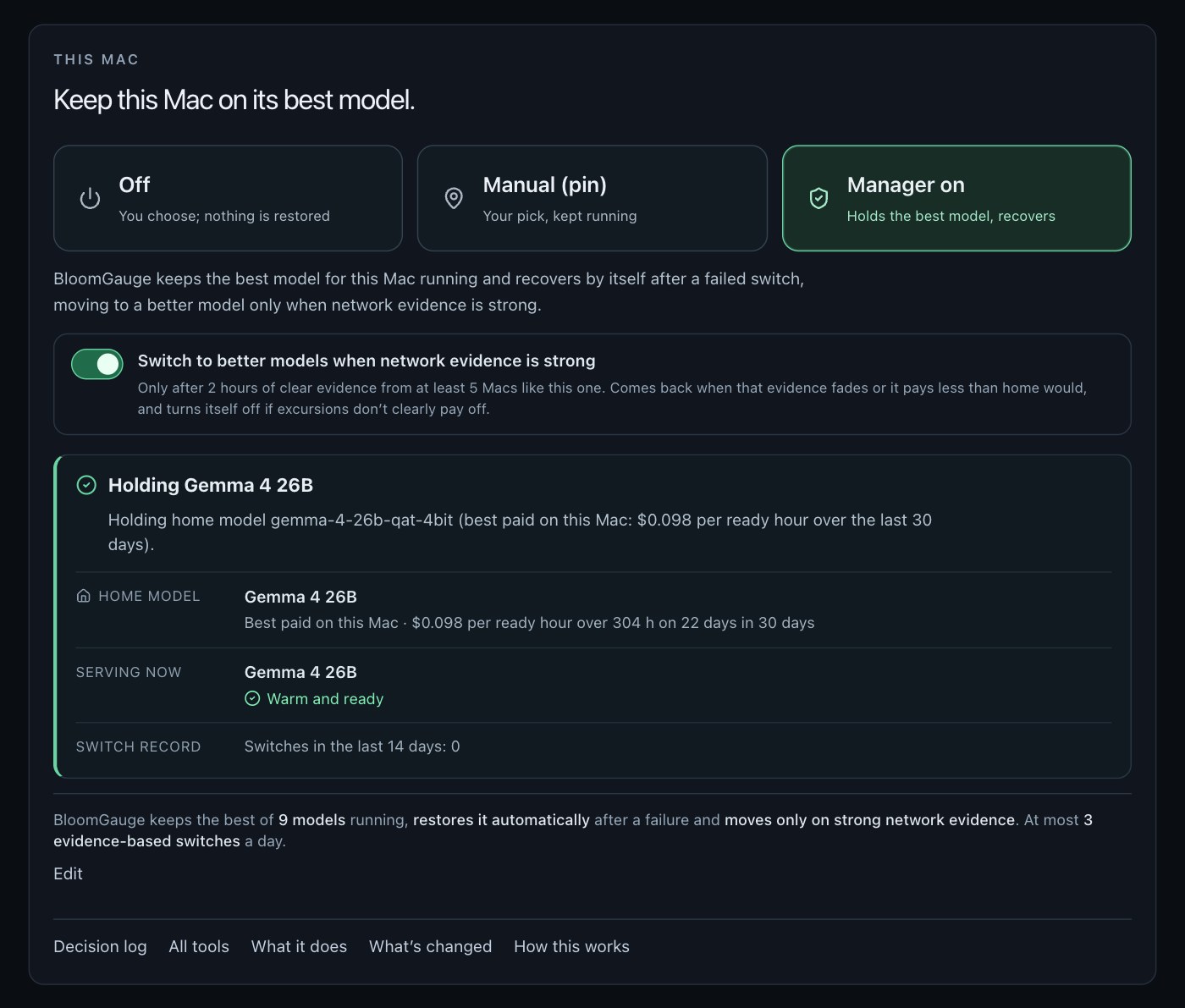
A card says what the Manager is doing (“Holding Gemma 4 26B”), why that model is home (for example, best paid on this Mac per ready hour), what is serving now, and how many switches it made in the last 14 days. It moves to another model only after two hours of clear evidence, at most 3 times a day.

WhereOptimizer → Overview, with the Manager on

Optimizer card explaining why it keeps the current model and why the next candidate is on hold

Off, Manual or Manager on

Three ways to run this Mac. Off: you choose and nothing is restored. Manual (pin): your pick, kept running. Manager on: BloomGauge holds the best model and recovers by itself.

WhereOptimizer → Overview, top card

Your plan and limits

Choose which models BloomGauge may use, and fine-tune how long to stay on a model, how long to confirm evidence, how much memory to keep free and how many automatic moves to allow in a day.

Try thisHover a dimmed model to see why it can’t be used on this Mac.

WhereOptimizer → Overview → Edit

Would switching pay more?

Your current model against the best alternative, with the decision history for the last 24 hours, earnings checks, why each model is held and what limits a switch.

WhereOptimizer → Overview → Decision details

What BloomGauge knows about each model

For every model: what it is expected to earn now, what it actually earned on this Mac, when it was last measured, and whether there is enough evidence for a confident switch.

WhereOptimizer → Overview

Model controls

Start, stop or switch models yourself. Each model shows whether it fits in memory and what it earned here per warm hour. Every switch and stop asks first, and a queued switch can be cancelled.

WhereOptimizer → All tools → Switch models

Network news

Models joining or leaving the network and big swings in capacity, with an optional phone notice for new models.

WhereOptimizer → Overview

Demand and history

Where the network’s demand is, and what each level of demand has paid you.

4 features

What could each model earn next hour?

A dollars-per-hour bar for each model, with the spread of its past hours behind each estimate.

WhereOptimizer → Demand

Earnings at each level of demand

What each model has earned at each level of network demand, with the level you’re in now outlined.

Try thisTap a demand band to re-rank every model at that level.

WhereOptimizer → Demand → Historical demand

All your model runs, together

A card per model you’ve run, a comparison table of earnings per hour and paid jobs, a grid of your earnings by local time (weekday and weekend, in 4-hour slots), and a chart of what each level of demand earned you.

WhereOptimizer → History

Guardian: keeps your Mac earning

Recovery, checks and notices that keep a Darkbloom Mac ready to earn, whoever picks the model.

7 features

Keep this Mac earning

When Darkbloom stops serving your model, BloomGauge loads it again or restarts Darkbloom, within set limits: at most 3 restarts an hour and 6 a day. It never changes a model you picked yourself, and a line shows the last thing it did.

WhereOptimizer → Overview

Keep my model loaded

Darkbloom unloads an idle model after an hour, and the base reward pauses while nothing is loaded. With this on, BloomGauge has the model loaded again within about a minute. On by default for new installs.

WhereOptimizer → Overview

Why not earning?

Checks each thing Darkbloom needs before it pays, in order: powered and awake, connected, taking new work, verified, model loaded, measured recently, winning requests, jobs paid. It names the first one that isn’t OK, says what Darkbloom and BloomGauge each see, and gives you one next step.

Try thisThe “Your move” button takes you to the right screen and opens the right card.

WhereMore → Why not earning?

How reliably this Mac earns

How much of the last 24 hours and 7 days this Mac was ready to earn, the last problem, restarts and time to recover, and a bar of what caused the rest.

WhereEarnings → Overview, near the bottom

Recovery from stalls

When paid work stops, BloomGauge sends a test request, then restarts Darkbloom on the same model, then holds your home model and tells you, with each step’s time shown.

WhereOptimizer → Overview, after a stall

Offline notice

Optional. Your phone gets one ordinary notification if this Mac stops checking in for 15 minutes (you choose 10 to 60). Shutting down, logging out or a stop you made don’t count. Pause it for an hour, four hours or until morning.

WhereOptimizer → Overview → Notifications

Notifications, Mac and phone

Choose per alert whether it goes to your Mac, your phone or both: earnings running high, a switch coming, model switched, problems, new models on the network, power and sleep, and offline notices. Quiet hours included.

WhereOptimizer → Overview → Notifications

Your Mac and the network

What your Mac is doing, what it costs to run, and what the network looks like.

5 features

Load and temperatures

Live CPU, GPU and memory meters, CPU and GPU temperatures from Cool to Hot, fan speed and thermal pressure, with history charts.

WhereMore → Hardware

What it takes to earn

Power draw, energy used and estimated electricity cost at your own rate, and confirmed earnings minus that cost.

WhereMore → Energy

What kind of work pays?

Earnings per request and per million tokens, request sizes and a comparison of models.

Try thisClick a model card to filter the whole screen to that model.

WhereMore → Workload

When is the network busiest?

Where the network’s activity comes from over time, and a weekday-by-hour heatmap with a marker for now.

WhereMore → Network traffic

Network fleet

Where requests come from, where the Macs are, the network’s resources and its hardware mix.

WhereMore → Network fleet

My Macs and your phone

Every Mac in one view, from your desk or your phone. Private, over your own Tailscale network.

2 features

Every Mac in one view

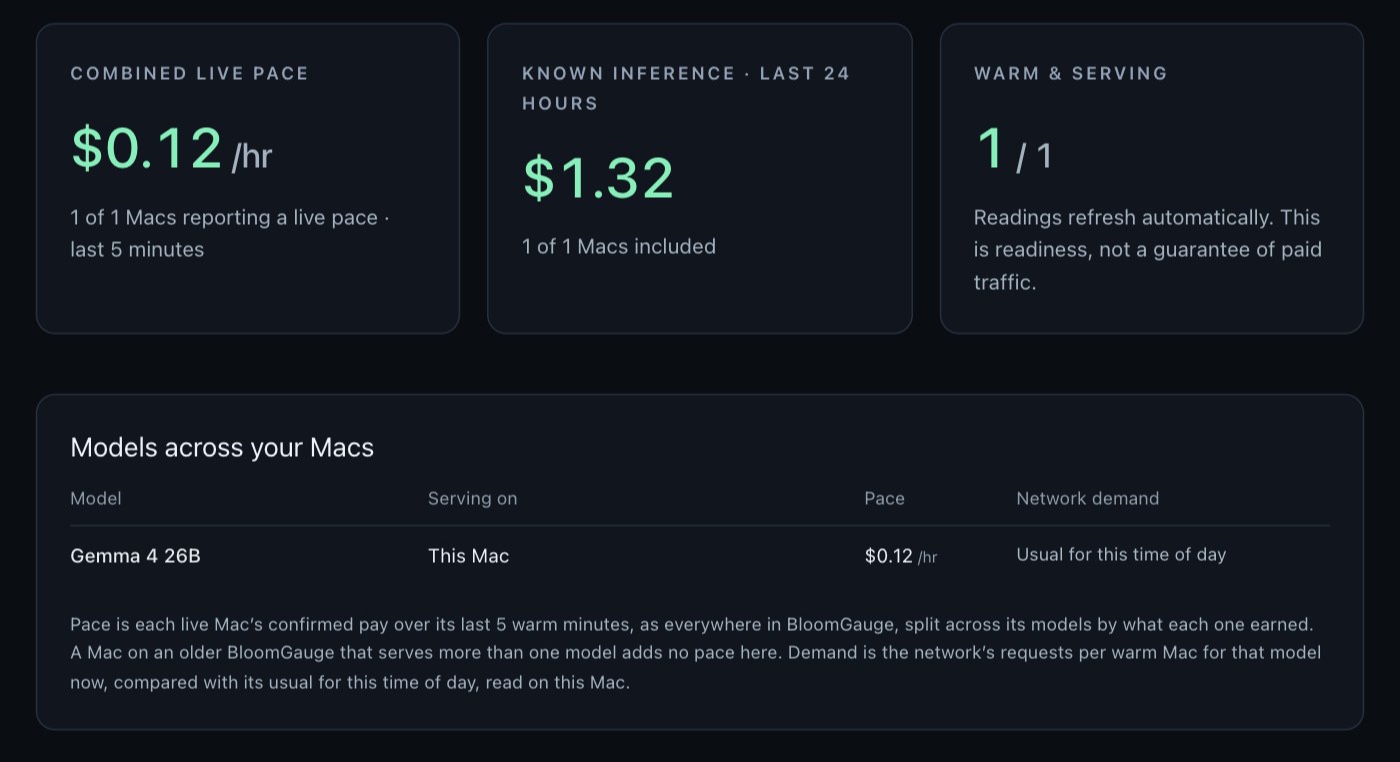
Up to ten Macs together: combined live pace, known earnings for the last day, which Macs are warm and serving, and a table of models across your Macs with their network demand. Each Mac has its own card with its models and pace, and a link to its own dashboard.

WhereMy Macs

My Macs showing combined live pace, known earnings, and each model with its pace and network demand

Your dashboard on your phone

Turn on phone access on the Mac, open your private link on your phone (Wi-Fi or cellular) and add it to your Home Screen. Only your own Tailscale login gets in. The phone has the same Pulse, model controls, notifications and Why not earning?.

WhereMore → Phone access

Quietly in the background

The parts you don’t have to think about.

5 features

Updates itself

Checks every 6 hours and installs while you’re away, never during a model switch. Your history and settings stay.

WhereBloomGauge menu → Update Automatically

Live status and pause

One word says whether the numbers are live. Pause freezes the screen so you can read it, while BloomGauge keeps working underneath.

Try thisClick the status word to see how fresh each reading is.

WhereTop right of every screen

Help when something’s wrong

The guide, the Slack channel and a problem report you can read before you send it. Optional: send problem reports automatically.

WhereMore → Help & feedback

Your data, your choice

History and settings stay on your Mac. Usage stats, contact details and pay summaries are each off until you turn them on, and each panel says exactly what is shared. New installs send a few anonymous setup counts unless you untick them (off any time in Help & feedback).

WhereMore → About BloomGauge

Try it on your Mac

Free for Apple Silicon. BloomGauge downloads and sets up Darkbloom for you; all you do is create a Darkbloom account.

Download for Mac